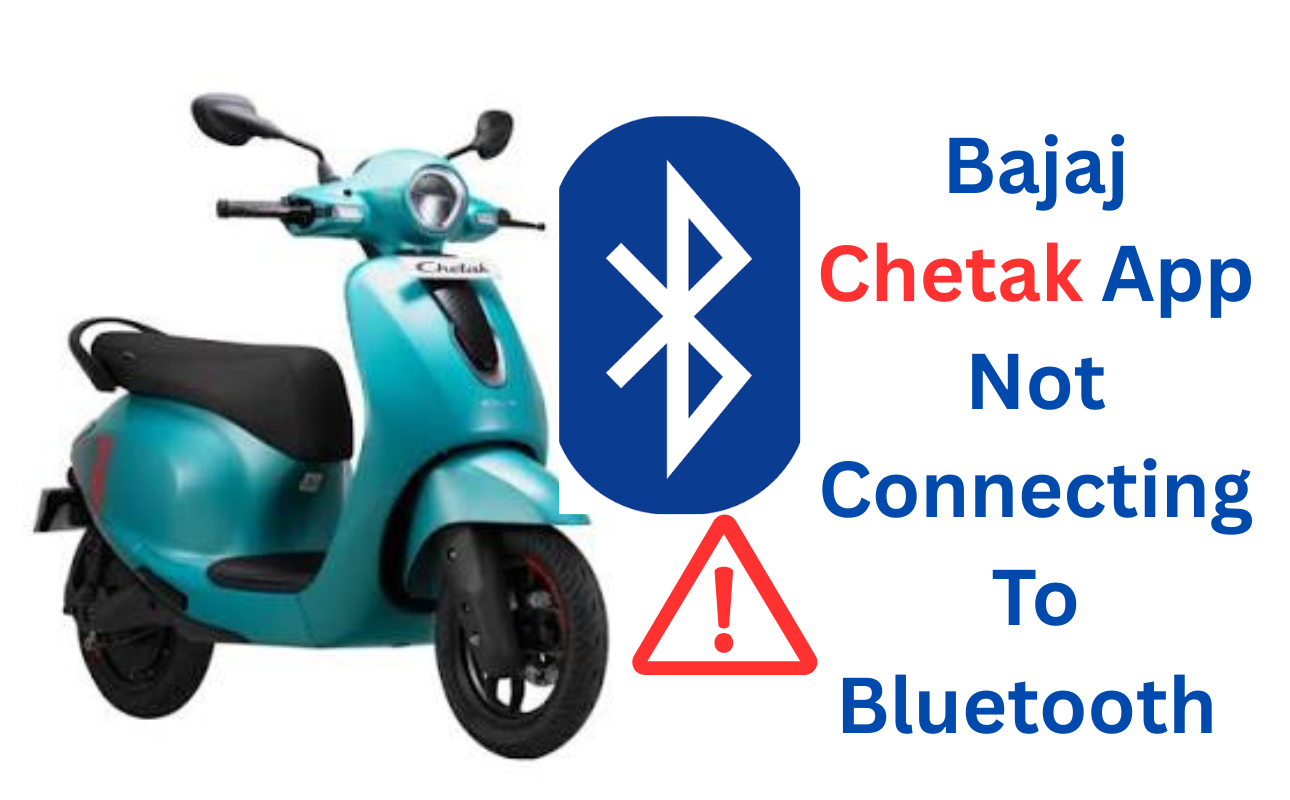
Does the My Chetak app keep failing to connect? You’re not alone. This is a real, repeated complaint from Chetak owners, confirmed directly on the app’s own listing. This guide covers what’s actually going wrong, and real steps to fix it.
The Real Pattern, Confirmed By Users
This isn’t a rare glitch. Real reviews on the app’s own store listing describe the same issue again and again.
One user reported the app not connecting to Bluetooth automatically at all, every time they start the vehicle. Another described the app working only once in two weeks of use, and only after clearing the app’s data and cache, then logging in again. A separate complaint describes the app closing entirely the moment navigation is turned on.
How The App Is Supposed To Work
The My Chetak app pairs with your scooter over Bluetooth. The normal process goes like this:
- Turn on your scooter.
- Open the My Chetak app and connect to your scooter’s Bluetooth.
- Scan the QR code found in your scooter’s glove box to link the app to your specific vehicle.
Once paired, the app should show battery status, range, trip history, and navigation to your parked scooter.
Why The Connection Keeps Failing
A few real, common causes sit behind this issue.
Location services turned off. On most Android phones, Bluetooth scanning for nearby devices requires location permission to be active, even though it feels unrelated. If this is off, the app may fail to find your scooter at all.
Old cached app data. Several owners report the app holding onto a broken connection state, even after a phone restart. Clearing this manually has helped some users reconnect.
Background app restrictions. Some phones aggressively limit what apps can do in the background, which can prevent the app from reconnecting automatically each time you start your scooter.
The app’s own reliability. It’s worth being direct here: multiple real reviews describe the app itself as unreliable, not just a one-time setup issue. This appears to be a genuine software quality problem, not just a user error in many cases.
Steps To Try, In Order
Step 1: Check Location Services Are On
Go to your phone’s settings and confirm both Bluetooth and Location are switched on. This is required for Bluetooth scanning on most Android versions, even though it isn’t obvious from the app itself.
Step 2: Clear The App’s Cache And Data
On Android, go to Settings, then Apps, find My Chetak, and clear both cache and data. Log back in and re-pair with your scooter. This fixed the connection for at least one reported case, though it may not be a permanent fix.
Step 3: Fully Restart Your Phone
Not just the app. A full phone restart clears some background Bluetooth states that a simple app close doesn’t.
Step 4: Re-Scan The QR Code
If reconnecting doesn’t work, try unpairing the scooter in the app entirely, then scan the glove box QR code again as if pairing for the first time.
Step 5: Update The App
Check for a pending update in your app store. Bajaj has released bug fix updates before, so an outdated app version could be part of the issue.
Step 6: Avoid Using Navigation If It Crashes The App
If your app closes specifically when navigation turns on, this appears to be a known bug for some users. Avoid relying on in-app navigation until an update addresses it, and use a separate maps app in the meantime.
If Nothing Works
If you’ve tried all the steps above and the app still won’t hold a connection, this is worth reporting directly to Bajaj through the app’s feedback option or your service center, since it points to a deeper software issue rather than something fixable entirely on your end.
Final Thoughts
A My Chetak app that won’t connect reliably is a real, repeated complaint, not just your unit acting up. Start with location services and a cache clear, since these fix the issue for some users. If the problem persists, especially the navigation crash, this looks like a genuine app reliability issue worth reporting directly to Bajaj.
FAQs
This is often tied to location services being off, since Android requires this for Bluetooth scanning, or to old cached app data holding a broken connection state.
For some users, it’s helped temporarily, but multiple reports suggest the issue can return. This points to a deeper app reliability issue, not just a one-time fix.
This has been reported by multiple users as a specific bug tied to the navigation feature. Avoiding in-app navigation until an update is released is the safest workaround for now.
It’s common. Multiple independent reviews on the app’s own store listing describe the same Bluetooth and reliability issues.